LeoSumLeoSum

Built for iPhone, iPad & Apple Watch

Built for iPhone, iPad & Apple Watch.

Capture everyday spending in seconds without opening a spreadsheet. Add Home Screen widgets, ask Siri to log expenses or work hours, automate Apple Pay taps via Shortcuts, protect balances with Face ID, and log on the go from Apple Watch.

  • Home Screen & iPad Widgets
  • 9 Siri Voice Commands
  • Apple Pay Shortcuts
  • Apple Watch & Face ID

Illustrative flow · EUR

Coffee, Trip & Work Capture

Widget: Log Expense (Personal Expenses)
−€4.50
Lock Screen: Scan Receipt → Ski Trip
−€62.00
Siri: "Log 2 hours in LeoSum"
+2h billed
Time to record
Under 3 seconds

Every quick entry defaults to your Settings choice and supports 1-tap Undo.

How it works & connects

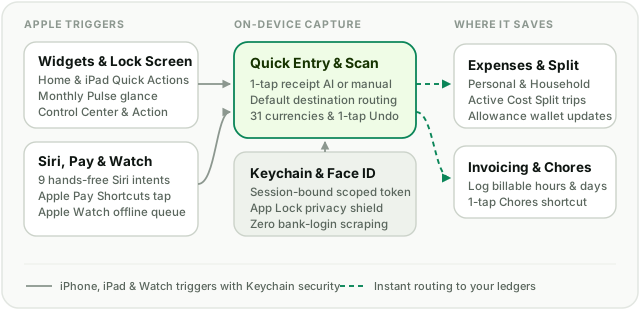
Diagram showing Home Screen and Lock Screen widgets, Siri voice intents, Apple Pay Shortcuts, and Apple Watch routing through Quick Entry and Keychain security into Cash, Cost Split, Allowances, and Invoicing.
Launch Quick Actions or Monthly Pulse from your Home Screen, speak to Siri, automate Apple Pay taps, or log from your wrist—all protected by a revocable Keychain token and Face ID App Lock.

How it works in practice

Home Screen, iPad & Lock Screen widgets

Add the privacy-safe Quick Actions widget (Scan Receipt, Log Expense, Log Work, Chores) with zero balances displayed, or Monthly Pulse & Quick Actions for live Cash Flow and Split Net Balance at a glance.


9 hands-free Siri voice commands

Add expenses, log billable hours or days into Invoicing, give or take household allowances, scan receipts, check cash flow, split balance, or net worth, and undo your last entry using "... in LeoSum".

Optional Apple Pay Shortcuts automation

Connect your own Wallet card once in Apple Shortcuts to quietly log physical Apple Pay taps in the background—without bank scraping, third-party aggregators, or extra permissions.

Apple Watch companion & Face ID App Lock

Queue expenses offline from your wrist with voice or keypad entry, manage allowance wallets, and shield financial balances automatically with Face ID or Touch ID after 30 seconds in the background.

How it connects across LeoSum

Apple quick-capture routes straight into your existing LeoSum ledgers so fast mobile entries stay in sync with desktop planning.

Frequently asked questions

Where do Siri, Apple Pay Shortcuts, and Apple Watch quick expenses and work logs get saved?
Quick expenses default to your Save quick expenses to setting in Settings → General → Apple & iPhone Features (initially Personal Expenses, matching active Repeated ledgers when applicable or creating a One-time expense). You can switch the default to Household Expenses or a specific Cost Split event, override per entry, manage Household Allowance wallets directly, or log billable hours and days straight into an Invoicing project (confirming the date and assuming your optional Default invoicing project when configured).
Does Apple Pay Shortcuts require bank linking or extra permissions?
No. Apple Pay Transaction automations are an optional local setup inside Apple's built-in Shortcuts app—where Apple requires selecting your own Wallet card once—and send only the merchant name and amount you pass to LeoSum using your device's Keychain-protected session token.
How are Siri and Apple Watch credentials secured if I sign out?
LeoSum stores a revocable scoped token in your iOS Keychain bound directly to your active session. Signing out or closing your account invalidates the token immediately on both server and device.
How do the iPhone & iPad widgets protect privacy and work with Apple Watch?
The Quick Actions widget displays zero balances or account numbers—only 1-tap shortcuts to scan a receipt, log an expense, log work, or open chores. The Monthly Pulse & Quick Actions widget reads your device's shared App Group cache, and the bundled Apple Watch app queues entries offline and deduplicates automatically on reconnect.

Explore other LeoSum features

Start with what matters today.

One monthly expense. One saving goal. One shared adventure. Choose a module and build your picture at your own pace.


Open Apple Settings